Table of Contents
Turneringsdatoer
De viktigste tingene å vite. Man trenger ikke å være kjempenøye start- og sluttidspunkter for en dato. Sett start og slutt til maksimumsverdiene dine. Hvis turneringen starter 09:45, skriver du bare…

Updated
by Ole Kristian Engvoll
Table of Contents
De viktigste tingene å vite
- Man trenger ikke å være kjempenøye start- og sluttidspunkter for en dato. Sett start og slutt til maksimumsverdiene dine. Hvis turneringen starter 09:45, skriver du bare inn 09:00 som starttid.
- Gjør datoer inaktive hvis du har mange datoer. Inaktive datoer vil ikke vises, og beregningen vil være jevnere for lange og tunge turneringer. MERK: Dette brukes for turneringer med mer enn 10 datoer og +1000 kamper.
- Det er mulig å endre turneringsdatoer på registreringssiden din. Endringer importeres til TXO.
- Kolonnen «Beskrivelse» er kun for din egen skyld. Den vises ikke noe annet sted.
Forklaringer
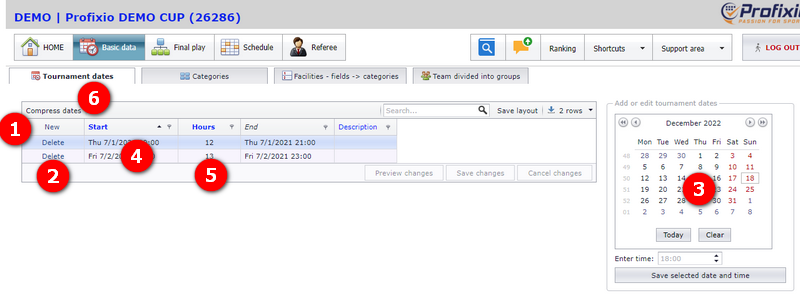
- Trykk på knappen «Ny» for å opprette en ny turneringsdato.
- Og dette er sletteknappen. MERK: Det er IKKE mulig å slette datoer som har treff. Du må slette treffene før du sletter datoen!
- Raskeste måte å legge til en ny dato på: Klikk på en dato i kalenderen, skriv inn tidspunkt og klikk deretter på knappen «Lagre valgt dato og tidspunkt». Den nye turneringsdatoen vil vises i rutenettet.
- Klikk i denne cellen for å endre dato og/eller klokkeslett.
- Sluttantall timer for hver dag. Kolonnen «Slutt» beregnes ut fra «Timer».
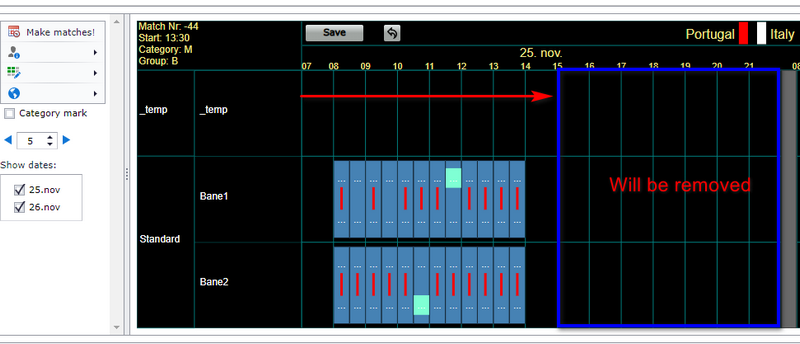
- Du kan komprimere hver turneringsdato for å bare vise nok av dagen basert på kampene. Hvis den første kampen starter klokken 13:00, vil denne funksjonen redigere turneringsdatoen til å starte klokken 12:00. Hvis det ikke finnes noen kamper på en turneringsdato, vil denne datoen bli satt som inaktiv. Se eksempel nedenfor.
Eksempel på komprimerte datoer
- 25.nov vil bli endret til å slutte klokken 15:00 etter komprimering.
Inaktiv dato
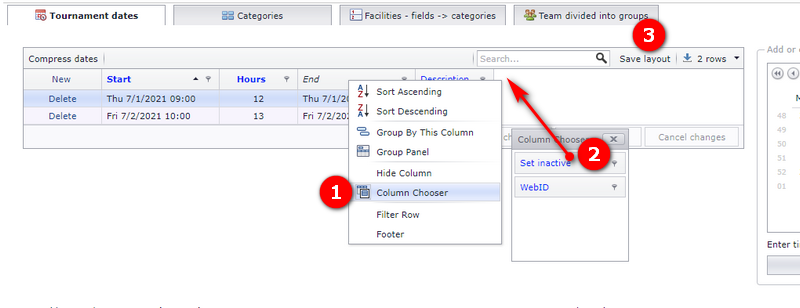
Det er mulig å sette en dato som inaktiv. Dette gjelder hovedsakelig hvis du er usikker på om denne datoen skal brukes. Ellers anbefaler vi å slette ubrukte datoer.
- Høyreklikk på en kolonneoverskrift.
- Dra kolonnen «Angi inaktiv» opp til overskriftsområdet.
- For å gjøre endringer for senere, klikk på «Lagre layout».
Legg til flere datoer
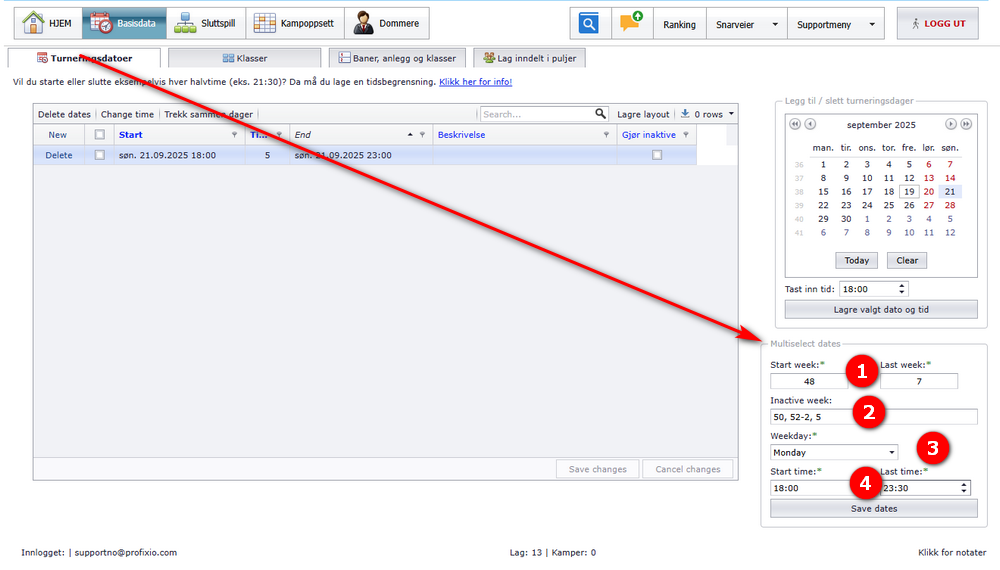
En turnering som strekker seg over flere uker, med kamper hver tirsdag fra 18:00 til 23:00, kan enkelt lages.
MERK: Kun turneringer med siste dato minus startdato større enn 21 vil se "Flervalgsdatoer".
- Skriv inn startuke og forrige ukesnummer. Kampdatoen vil inkludere både start- og forrige ukesnummer. Det er ikke noe problem hvis uken er før nyttår.
- Skriv inn inaktive uker. Bruk komma (,) for å skille. Bruk linje (-) for å inkludere alle inaktive uker mellom. For eksempel "45, 48, 51-3, 11". Ingen av ukene 45, 48, 51, 52, 53, 1, 2, 3, 11 vil bli inkludert.
- Skriv inn den spesifikke dagen for hver uke. Du må gjøre dette to ganger hvis du vil inkludere to dager (eller flere).
- Skriv inn start- og sluttidspunkt for hver dato. Klikk deretter på Lagre.
Sletter alle datoer som ikke har noen treff / Komprimerer datoer
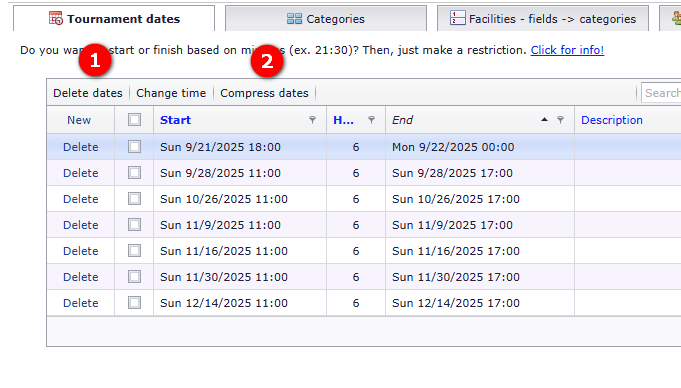
- Bare klikk på knappen «Slett datoer». Alle datoer uten treff slettes. Dette gjøres hvis du har gjort plass til for mange datoer.
- Hvis du vil slette datoer og i tillegg komprimere datoer med treff for å være så korte som mulig, bruk "Komprimer datoer". Hvis en dato er satt fra 10:00 til 23:00, men bare har treff fra 14:00 til 18:00, vil start- og sluttidspunktet for denne datoen bli satt til 13:00 og 19:00 (det vil si én time tidligere og én time senere enn treffene strekker seg over).
Se «Eksempel på komprimering av datoer» lenger oppe i dette vinduet
How did we do?
Loading registration data
Category