Fields
Superior. Each category must have at least one field assigned! If not, no matches can be automatic positioned for this category. If you have one big field, but you want to divide it into several smal…

Updated
by Ole Kristian Engvoll
Superior
- Each category must have at least one field assigned! If not, no matches can be automatic positioned for this category.
- If you have one big field, but you want to divide it into several small fields, you must make all this small fields.
- We recommend to use correct facility name for each field. Use the panel in the bottom of this site to make your facilities.
- Fields are default assigned to categories, but you can assign fields to groups instead. See at the bottom of this article.
Assign fields to categories
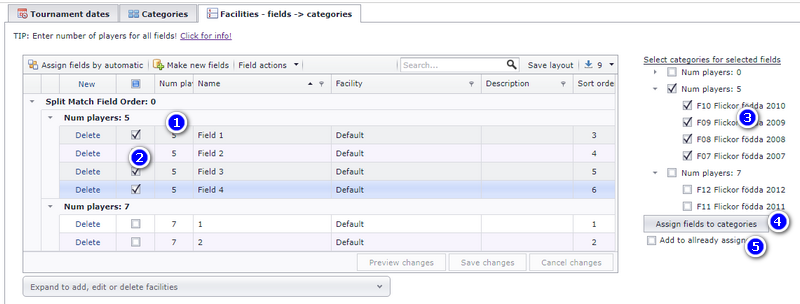
- First of all, Enter number of players for each field. You will then get the fields much more view friendly.
- Select the fields you want to assign a category
- Select the category(ies) (number of fields is shown between parenthesis)
- Click "Assign fields to categories" to save this assignment
- Check on this box if you want to add fields to all ready assigned categories.
Field functions
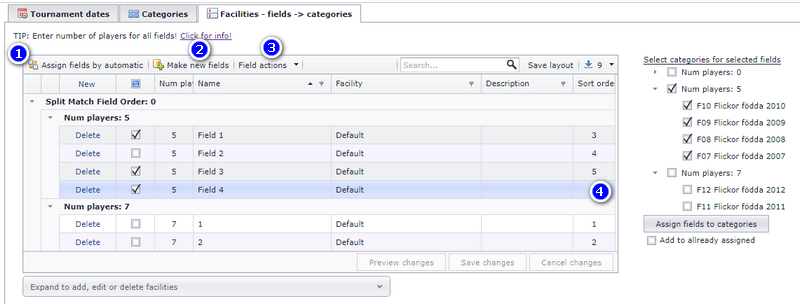
- If you have categories set with number of players, and fields also set with number of players, you can assign fields to categories by automatic.
- If you have to make several fields, use this button. If you enter "Field" and want 7, TXO will make Field 1, Field 2...Field 7. If you enter "Field 5" and want 4, TXO will make Field 5, Field 6, Field 7 and Field 8.
- If you want to "tidy up" the fields, you can delete fields which are not in use. Look into this menu.
- Sort order influence in what order the categories will show up in the public match schedule
Assign fields to group
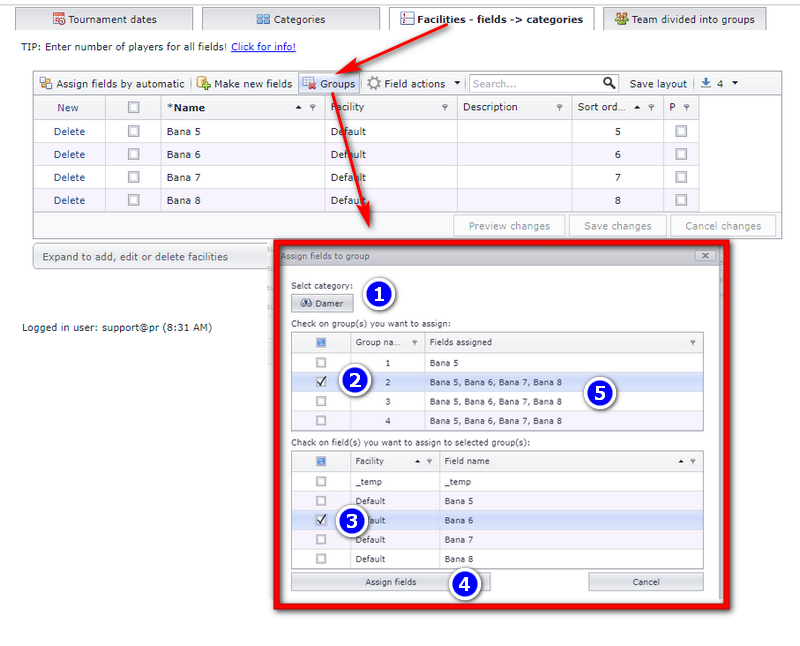
It is also possible to assign fields to groups, not only to categories. Most ofte you will still want to assign fields to category. Enter menu "Basic" and then as shown on the image below.
- Click on the category you want to work with
- Select one or several groups (just check on as shown)
- Select one or several fields you want to assign to the selected group(s)
- Click on the button "Save" and continue with several groups if you want.
- This is just a column showing assigned fields to group.
How did we do?
Category
Gruppe - Endre navn