Make schedules with solutions
Superior. A schedule contains a set with criterias such as "Derby", "Anti team", "Breaks" and more. Each schedule can have a set of solutions. A solution is matches with round number and team to play…

Superior
A schedule contains a set with criterias such as "Derby", "Anti team", "Breaks" and more.
Each schedule can have a set of solutions. A solution is matches with round number and team to play. No data about venue or date/time is included.
If you are happy with one solution, you can use this data as basic data for the final matchs schedule. If so, you enter button "Save match schedule".
Make a schedule
A schedule is made from all criterias set by user ("anti team" and so on). In order to make a schedule, follow these steps.
Ensure correct schedule is activated (it will then show up with blue text color).
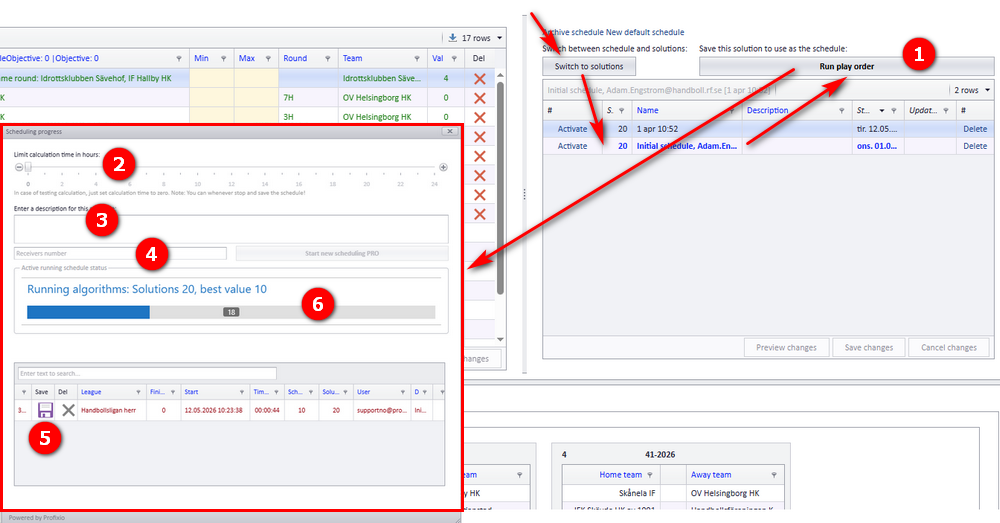
- Click on "Run play order" and a popup window will show up.
- Enter max time for the algorithm to run. If not set any time, it will default to 60 seconds.
- You can enter a description in order to easier remember this schedule for later.
- If "Max time" is set to several hours, it is wise to enter a phone number to be informed when the schedule is finished.
- If you do not want to wait for the schedule to finish, click on the Save button. Inside this table, you will find estimated "Time left".
This is by default set to 60 seconds BUT is calculated from every time the algorithm finds a better solution. - This is just a progress meter telling you the status of the schedule
Use a solution from the schedule
A schedule can result in several solutions. Some solutions can have the same amount of value, telling you they are equal seen from the objectives weigth.
NOTE: This is just active for soft constraints.
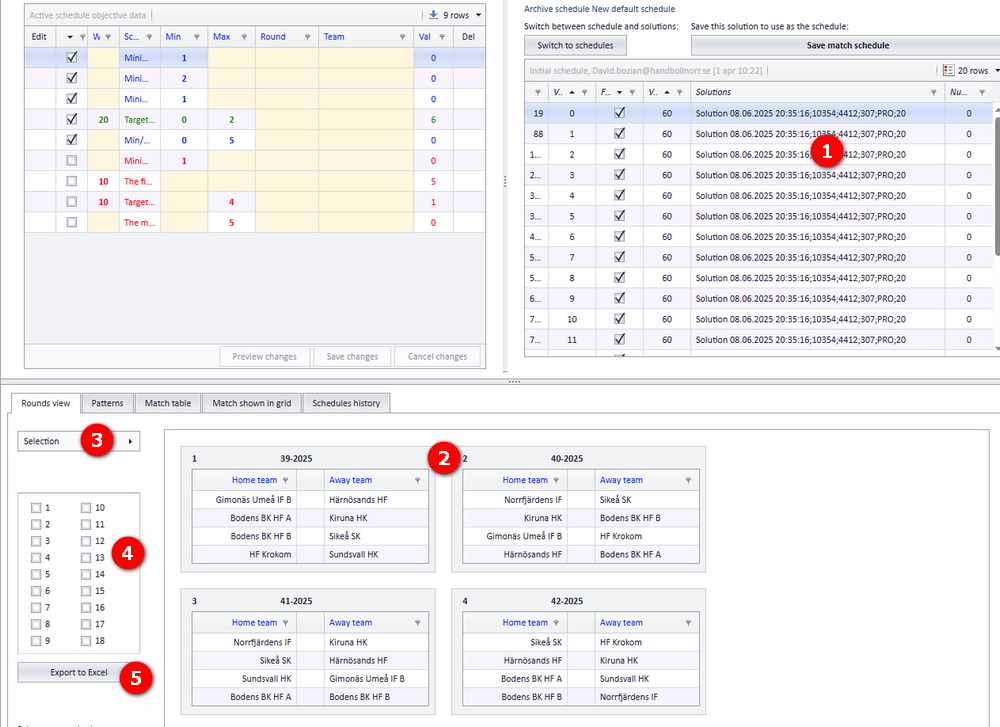
- Click on a solution to activate the data in this soultion
- A view of rounds with teams are now filled in based on this solution
- You can select which rounds you want to see...
- ...or just check on the rounds here.
- Export the data to Excel if you prefer Excel. All matches in the solution are exported, no matter of selections you may have in bubble 3-4.
The correctness of a solution
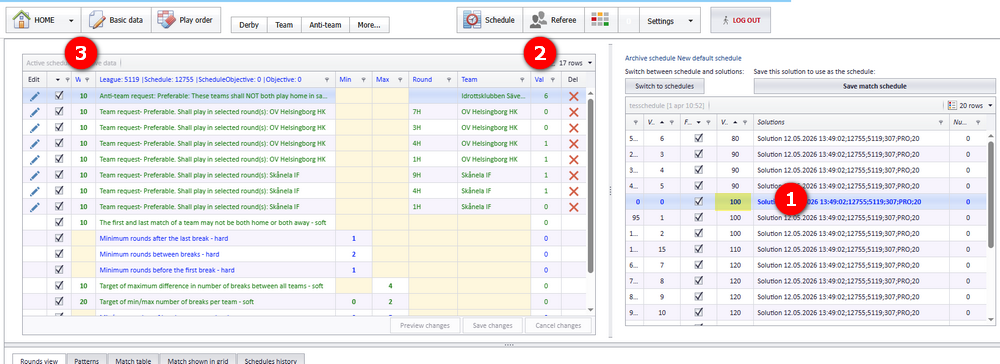
When running SINTEF algorithm, you will see some values presented. These values do NOT correspond with correctness of solutions.
- Click on a solution to see the result of the criterias. The summary of correctness is shown in the yellow rectangle beside this bubble.
- This column shows number of situations not correct.
- This is the weight set for each criteria and influence the total sum for the correctness of the solution.
How did we do?
Deltagere